This guide is in English. The linked activity or Scratch project uses Japanese.
Create a melody
Create a melody to go with chords
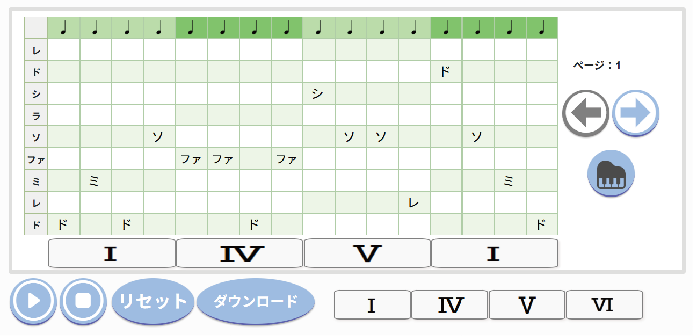
This activity was added to the main Chicodori app after about a year of development.
Our popular Music collection has a new activity.
Listen to different chords, compare individual notes, and
enjoy making a melody using notes from the chords.
For instructions, see the guide below.
There are also worksheets that match the activity screen. These are in Japanese.
July 2025: You can now download the music you create.
Share feature requests in the comments below.

Music is fun!
More features for making melodies with chords
Try making a melody that fits the chords.
Create a melody · worksheet
Optional Japanese worksheets are available to use with the activity.
How to use the activity
1. Screen guide
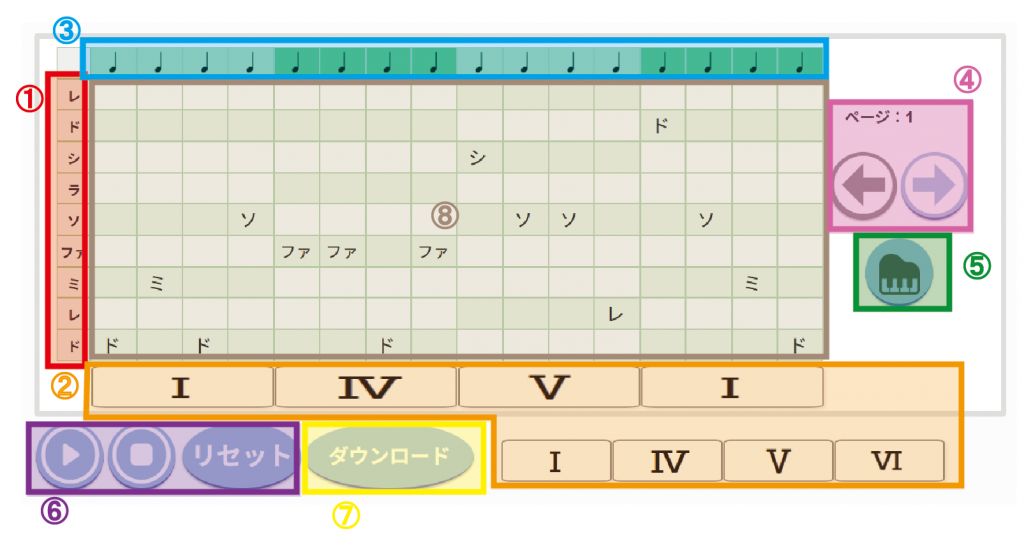
① Note-name reference
② Chord blocks
③ Rhythm settings
④ Page selector (bars 1–4 / bars 5–8)
⑤ Melody instrument selector
⑥ Play / Stop / Reset
⑦ Download button
⑧ Melody entry grid
2. Set the chords
Begin by choosing the chords.
② Chord blocks are the controls to use.
The default chord sequence is I–IV–V–I, as shown in the screenshot. You can change the order.
Drag a chord block from the lower row to the bar where you want to use it.
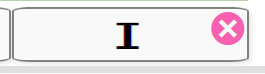
② Chord blocks: tap the × on a chord block to clear the chord for that bar. The cleared chord will not play.
3. Set the rhythm
③ Rhythm settings: use these controls to choose the rhythm.
Tap a rhythm symbol to cycle through a quarter note, eighth notes and a half note.
Two beats cannot be set as eighth note + half note + eighth note.
The fourth beat cannot be changed to a half note.
Each bar must fit within four beats.
For example, quarter note + half note + half note exceeds four beats.
4. Enter a melody
Notes belonging to the current chord are lightly highlighted.
For note names, see ① Note-name reference.
Tap notes in the grid to enter your melody. If you are following a classroom task, check its guidelines as you compose.
The notes you enter use the rhythm chosen in ③ Rhythm settings.
5. Continue with bars 5–8
After completing bars 1–4, use ④ Page selector to move to the second page.
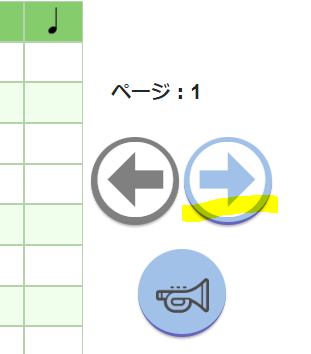
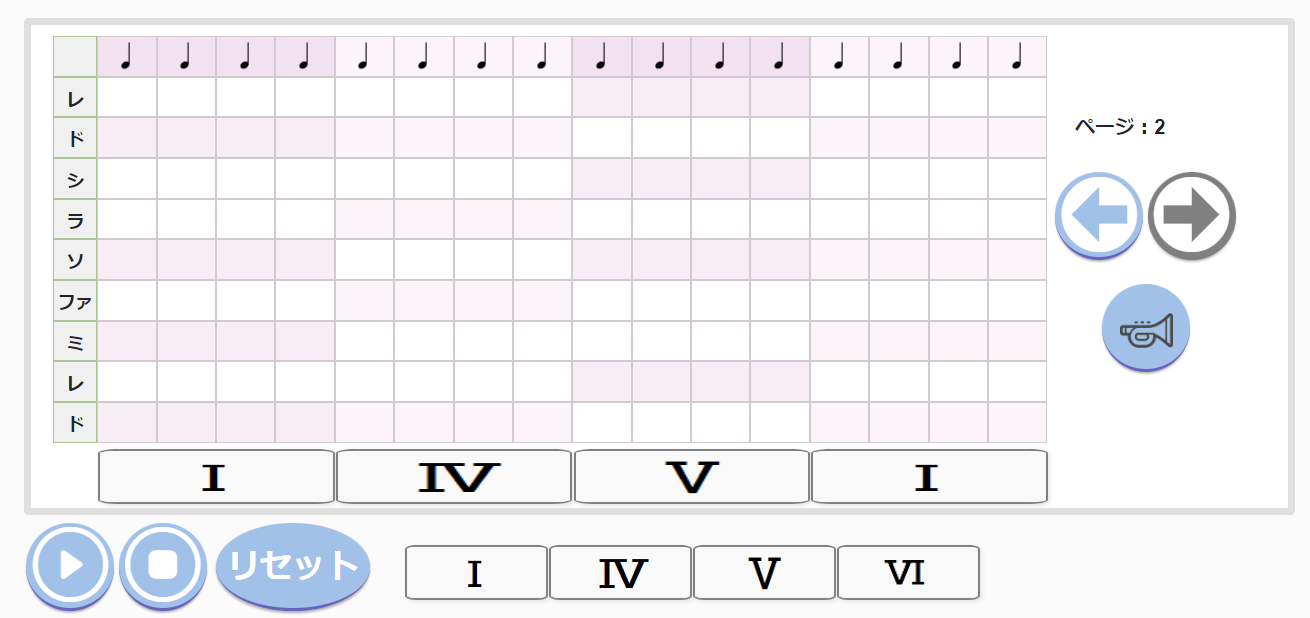
On the second page, ⑧ Melody entry grid has a pink background to show that you are working on the next set of bars.
6. Choose an instrument
⑤ Melody instrument selector: use this button to change the instrument that plays your melody.
Available instruments (as listed in July 2024)
- Piano
- Synthesizer
- Guitar
- Trumpet
- Xylophone
7. Play, stop and reset
Press Play to hear your melody.
Press Stop to stop playback.

Reset clears all of the chords, rhythms and notes you have entered and returns the activity to its initial state.
8. Download your music (added July 2025)
Press Download to save your music. The file goes to the download location configured in your browser.